Introduction
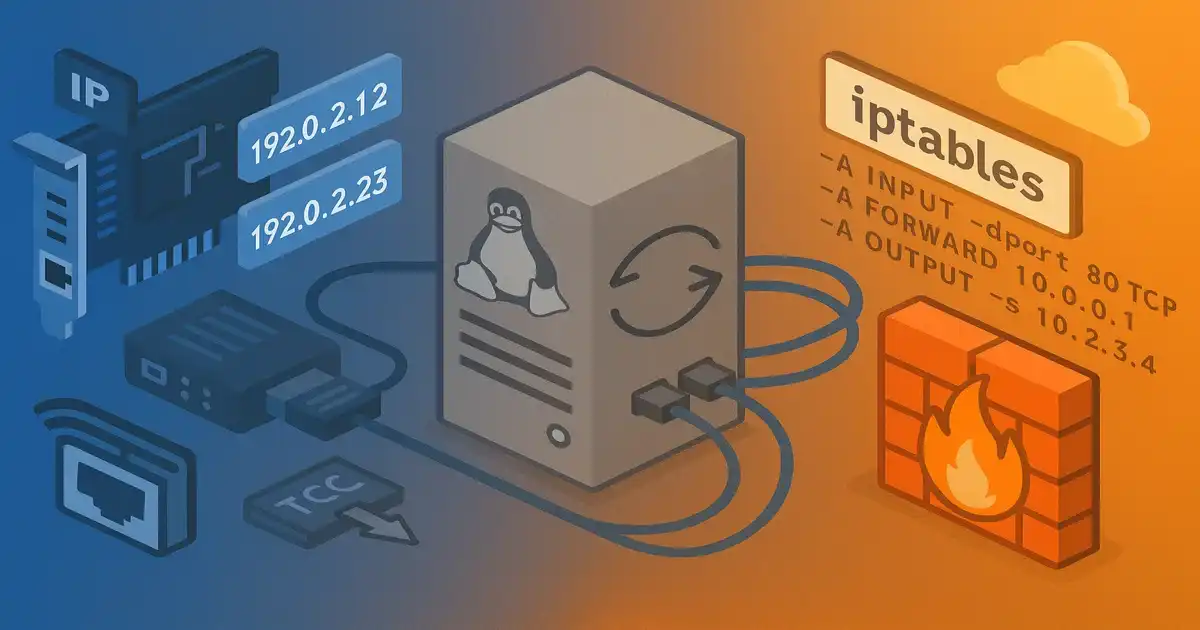
Network management is a critical skill for Linux system administrators. This comprehensive guide covers network configuration, firewall management, Network Address Translation (NAT), routing, VPN tunneling, and network monitoring tools.
We'll explore both NetworkManager and traditional networking approaches, UFW firewall configuration, NAT setup for gateway systems, static routing, GRE tunnels, time synchronization, and traffic monitoring. Each section includes practical commands and production scenarios.
Linux Administration Series
📚 View Complete Linux Administration Guide - Master all 7 parts with our comprehensive learning path.
This is Part III of our comprehensive 7-part Linux administration guide:
- Part I: File System & Process Management
- Part II: User Authentication & LDAP
- Part III: UFW Firewall & Networking (Current Article)
- Part IV: systemd & SSH Hardening
- Part V: Postfix Email Server
- Part VI: QEMU KVM Virtualization
- Part VII: LVM & RAID Storage
Linux Network Stack Architecture
Network Layer Overview
Key Components:
- Network Interfaces - Physical/virtual NICs (eth0, wlan0, enp0s3)
- IP Layer - Routing, forwarding, NAT
- Firewall - iptables/nftables (managed by UFW)
- Network Manager - nmcli, systemd-networkd
Network Interface Naming
Predictable Interface Names
Modern Linux uses predictable network interface names:
| Prefix | Type | Example |
|---|---|---|
| en | Ethernet | enp0s3, ens1 |
| wl | Wireless LAN | wlp3s0 |
| ww | WWAN (Mobile) | wwp0s29u1u4i6 |
Naming scheme breakdown:
- eno1 - Onboard device index 1
- ens1 - PCI Express hotplug slot 1
- enp2s0 - PCI bus 2, slot 0
- enx78e7d1ea46da - MAC address-based
View network interfaces:
# List all interfaces (ip command documentation: https://man7.org/linux/man-pages/man8/ip.8.html)
ip link show
ip a

# Show specific interface
ip link show eth0

# Legacy command
ifconfig

# List only interface names
ls /sys/class/net/

# Show interface statistics
ip -s link show eth0
Dynamic IP Configuration with NetworkManager
NetworkManager Architecture
NetworkManager commands:
# Check NetworkManager status
systemctl status NetworkManager

# Show all connections
nmcli connection show

# Show active connections
nmcli connection show --active

# Show devices
nmcli device status

# Create new DHCP connection
nmcli connection add \
  type ethernet \
  con-name "My Connection" \
  ifname enp0s3

# Start connection
nmcli connection up "My Connection"

# Stop connection
nmcli connection down "My Connection"

# Delete connection
nmcli connection delete "My Connection"

# Reload configuration
nmcli connection reload
Interactive NetworkManager configuration:
# Edit connection interactively
nmcli connection edit "My Connection"

# nmcli interactive commands:
print                           # show all settings
print ipv4                      # show IPv4 settings
describe ipv4.method            # describe a property
set ipv4.method auto            # set DHCP
set ipv4.dns 8.8.8.8 8.8.4.4   # set DNS servers
save                            # save changes
quit                            # exit
Static IP Configuration
Static IP Setup
Method 1: NetworkManager (nmcli)
# Create static IP connection
nmcli connection add \
  type ethernet \
  con-name "Static IP" \
  ifname enp0s3 \
  ipv4.method manual \
  ipv4.addresses 192.168.1.100/24 \
  ipv4.gateway 192.168.1.1 \
  ipv4.dns "8.8.8.8 8.8.4.4"

# Activate connection
nmcli connection up "Static IP"

# Modify existing connection
nmcli connection modify "Static IP" \
  ipv4.addresses 192.168.1.101/24

# Apply changes
nmcli connection up "Static IP"
Method 2: Traditional /etc/network/interfaces (Debian/Ubuntu)
# Edit network configuration
sudo vim /etc/network/interfaces

# Static IP configuration:
auto enp0s3
iface enp0s3 inet static
    address 192.168.1.100
    netmask 255.255.255.0
    gateway 192.168.1.1
    dns-nameservers 8.8.8.8 8.8.4.4

# Restart networking
sudo systemctl restart networking

# Or bring interface up/down
sudo ifdown enp0s3
sudo ifup enp0s3
Method 3: Netplan (Ubuntu 18.04+)
# Edit netplan configuration
sudo vim /etc/netplan/01-netcfg.yaml

# Configuration:
network:
  version: 2
  renderer: networkd
  ethernets:
    enp0s3:
      addresses:
        - 192.168.1.100/24
      gateway4: 192.168.1.1
      nameservers:
        addresses: [8.8.8.8, 8.8.4.4]

# Apply configuration
sudo netplan apply

# Test configuration (revert in 120s if not confirmed)
sudo netplan try
Firewall Configuration with UFW
UFW Architecture
Basic UFW commands:
# Enable firewall (UFW uses netfilter/iptables: https://www.netfilter.org/)
sudo ufw enable

# Disable firewall
sudo ufw disable

# Check status
sudo ufw status
sudo ufw status verbose
sudo ufw status numbered

# Default policies
sudo ufw default deny incoming
sudo ufw default allow outgoing

# Allow specific port
sudo ufw allow 22/tcp        # SSH
sudo ufw allow 80/tcp         # HTTP
sudo ufw allow 443/tcp        # HTTPS
sudo ufw allow 3000           # port (both tcp/udp)

# Allow port range
sudo ufw allow 6000:6010/tcp

# Deny/Reject port
sudo ufw deny 23              # deny (silently drop)
sudo ufw reject 23            # reject (send ICMP unreachable)

# Delete rule
sudo ufw delete allow 80/tcp
sudo ufw delete 3             # delete rule number 3

# Reset firewall (delete all rules)
sudo ufw reset
Advanced UFW rules:
# Allow from specific IP
sudo ufw allow from 192.168.1.100

# Allow from subnet
sudo ufw allow from 192.168.1.0/24

# Allow from IP to specific port
sudo ufw allow from 192.168.1.100 to any port 22

# Allow from IP to specific IP and port
sudo ufw allow from 192.168.1.100 to 192.168.1.200 port 3306

# Allow specific protocol
sudo ufw allow proto tcp from 192.168.1.0/24 to any port 80

# Rate limiting (max 6 connections per 30 seconds)
sudo ufw limit 22/tcp

# Application profiles
sudo ufw app list
sudo ufw allow 'Nginx Full'
sudo ufw allow 'OpenSSH'

# Insert rule at specific position
sudo ufw insert 1 allow from 10.0.0.0/8

# Logging
sudo ufw logging on
sudo ufw logging medium
UFW configuration files:
# Main UFW configuration
/etc/default/ufw

# User rules
/etc/ufw/user.rules
/etc/ufw/user6.rules

# Application profiles
/etc/ufw/applications.d/

# Custom rules (before ufw processes)
/etc/ufw/before.rules
IP Forwarding and Routing
IP Forwarding Configuration
Enable IP forwarding:
# Check current setting (kernel IP routing documentation: https://www.kernel.org/doc/Documentation/networking/ip-sysctl.txt)
cat /proc/sys/net/ipv4/ip_forward
# 0 = disabled, 1 = enabled

# Enable temporarily
sudo sysctl -w net.ipv4.ip_forward=1

# Enable permanently
sudo vim /etc/sysctl.conf
# Add or uncomment:
net.ipv4.ip_forward=1

# Apply changes
sudo sysctl -p

# For IPv6
sudo sysctl -w net.ipv6.conf.all.forwarding=1
Routing table management:
# Show routing table
ip route show
route -n

# Show IPv6 routes
ip -6 route show

# Add route
sudo ip route add 10.0.3.0/24 via 192.168.1.1

# Add default gateway
sudo ip route add default via 192.168.1.1

# Delete route
sudo ip route del 10.0.3.0/24

# Add persistent route (Debian/Ubuntu /etc/network/interfaces)
auto enp0s3
iface enp0s3 inet static
    address 192.168.1.100/24
    gateway 192.168.1.1
    up route add -net 10.0.3.0/24 gw 192.168.1.1

# Add persistent route (NetworkManager)
nmcli connection modify "My Connection" \
  +ipv4.routes "10.0.3.0/24 192.168.1.1"
Network Address Translation (NAT)
NAT Architecture
Setting up NAT with UFW:
# 1. Enable IP forwarding
sudo sysctl -w net.ipv4.ip_forward=1
echo "net.ipv4.ip_forward=1" | sudo tee -a /etc/sysctl.conf

# 2. Edit UFW default forward policy
sudo vim /etc/default/ufw
# Change: DEFAULT_FORWARD_POLICY="DROP"
# To: DEFAULT_FORWARD_POLICY="ACCEPT"

# 3. Add NAT rules to UFW
sudo vim /etc/ufw/before.rules

# Add at the beginning (before *filter):
*nat
:POSTROUTING ACCEPT [0:0]
# MASQUERADE traffic from private network
-A POSTROUTING -s 192.168.1.0/24 -o enp0s8 -j MASQUERADE
COMMIT

# 4. Reload UFW
sudo ufw disable
sudo ufw enable

# Verify NAT
sudo iptables -t nat -L -n -v
NAT with iptables directly:
# Enable MASQUERADE (dynamic source NAT)
sudo iptables -t nat -A POSTROUTING -o eth0 -j MASQUERADE

# Static source NAT (SNAT)
sudo iptables -t nat -A POSTROUTING -o eth0 -j SNAT --to-source 203.0.113.1

# Port forwarding (DNAT) - forward port 80 to internal server
sudo iptables -t nat -A PREROUTING -p tcp --dport 80 -j DNAT --to-destination 192.168.1.10:80

# Allow forwarded traffic
sudo iptables -A FORWARD -i eth0 -o eth1 -m state --state RELATED,ESTABLISHED -j ACCEPT
sudo iptables -A FORWARD -i eth1 -o eth0 -j ACCEPT

# Save iptables rules (Debian/Ubuntu)
sudo iptables-save | sudo tee /etc/iptables/rules.v4

# Restore on boot
sudo apt install iptables-persistent
Network Tunneling (GRE)
GRE Tunnel Architecture
Creating GRE tunnel:
# Router 1 (12.34.56.78)
sudo ip tunnel add gre1 mode gre \
  remote 87.65.43.21 \
  local 12.34.56.78 \
  ttl 255

sudo ip link set gre1 up
sudo ip address add 10.255.0.1/30 dev gre1

# Add route to remote network
sudo ip route add 10.2.0.0/24 via 10.255.0.2

# Router 2 (87.65.43.21)
sudo ip tunnel add gre1 mode gre \
  remote 12.34.56.78 \
  local 87.65.43.21 \
  ttl 255

sudo ip link set gre1 up
sudo ip address add 10.255.0.2/30 dev gre1

# Add route to remote network
sudo ip route add 10.1.0.0/24 via 10.255.0.1

# Test tunnel
ping 10.255.0.2  # from Router 1
ping 10.1.0.10   # ping host on remote network

# Make persistent (add to /etc/network/interfaces)
auto gre1
iface gre1 inet static
    address 10.255.0.1
    netmask 255.255.255.252
    pre-up ip tunnel add gre1 mode gre remote 87.65.43.21 local 12.34.56.78 ttl 255
    post-down ip tunnel del gre1
    up route add -net 10.2.0.0/24 gw 10.255.0.2
Time Synchronization (NTP)
NTP Architecture
Configuring Chrony (modern NTP client):
# Install chrony (NTP documentation: https://chrony.tuxfamily.org/documentation.html)
sudo apt install chrony

# Check status
chronyc tracking
chronyc sources

# View detailed source info
chronyc sources -v

# Configuration file
sudo vim /etc/chrony/chrony.conf

# Example configuration:
# Use public NTP servers
pool pool.ntp.org iburst
server time.google.com iburst

# Allow clients from local network
allow 192.168.1.0/24

# Serve time even if not synchronized
local stratum 10

# Restart chrony
sudo systemctl restart chrony

# Check system time
timedatectl

# Set timezone
sudo timedatectl set-timezone America/New_York

# List timezones
timedatectl list-timezones

# Open NTP port in firewall
sudo ufw allow 123/udp
Using as NTP server:
# Server configuration (/etc/chrony/chrony.conf)
allow 192.168.1.0/24
allow 10.0.0.0/8

# Client configuration
server 192.168.1.100 iburst prefer

# Force synchronization
sudo chronyc makestep

# Monitor sync status
watch chronyc tracking
Network Monitoring and Troubleshooting
Monitoring Tools Overview
# Interface statistics
ip -s link show
ifconfig -s

# Real-time bandwidth monitoring
sudo iftop                    # per-host bandwidth
sudo iftop -i enp0s3         # specific interface
sudo nethogs                  # per-process bandwidth

# Connection monitoring (ss man page: https://man7.org/linux/man-pages/man8/ss.8.html)
ss -tunap                     # all TCP/UDP connections
ss -tl                        # listening TCP sockets
ss -tunap | grep :80         # connections on port 80

# netstat (legacy alternative)
netstat -tunap
netstat -rn                   # routing table

# Packet capture
sudo tcpdump -i enp0s3
sudo tcpdump -i enp0s3 port 80
sudo tcpdump -i enp0s3 host 192.168.1.100
sudo tcpdump -i enp0s3 -w capture.pcap

# DNS lookup
nslookup google.com
dig google.com
host google.com

# Trace route
traceroute google.com
mtr google.com               # continuous traceroute

# Test connectivity
ping -c 4 8.8.8.8
ping6 -c 4 2001:4860:4860::8888

# Check open ports
sudo nmap -sT localhost
sudo nmap -p 1-65535 192.168.1.100

# ARP table
ip neigh show
arp -n
Network performance testing:
# Install iperf3
sudo apt install iperf3

# Server side
iperf3 -s

# Client side (test throughput)
iperf3 -c 192.168.1.100

# UDP test
iperf3 -c 192.168.1.100 -u -b 100M

# Reverse test (server sends)
iperf3 -c 192.168.1.100 -R
Production Best Practices
-
Network Configuration:
- Use static IPs for servers
- Document IP address assignments
- Implement network segmentation (VLANs)
- Use DNS instead of hardcoding IPs
-
Firewall Management:
- Default deny all, explicitly allow needed ports
- Use UFW application profiles for common services
- Implement rate limiting for SSH
- Log firewall denials for security monitoring
- Regular firewall rule audits
-
NAT and Routing:
- Document routing topology
- Use specific source/destination in NAT rules
- Monitor NAT connection table size
- Implement QoS for traffic shaping
-
Monitoring:
- Monitor bandwidth usage with alerts
- Track connection counts per service
- Log network errors and packet loss
- Implement centralized logging for firewall events
- Use Prometheus + Grafana for visualization
-
Security:
- Disable IP forwarding if not needed
- Use VPN/GRE tunnels for site-to-site connectivity
- Implement reverse path filtering
- Regular security scans with nmap/nessus
- Keep systems updated
Troubleshooting Common Issues
No network connectivity:
# Check link status
ip link show enp0s3

# Bring interface up
sudo ip link set enp0s3 up

# Check IP configuration
ip addr show enp0s3

# Test gateway
ping 192.168.1.1

# Check routing
ip route show

# Check DNS
cat /etc/resolv.conf
nslookup google.com
Firewall blocking traffic:
# Check UFW status
sudo ufw status numbered

# Temporarily disable to test
sudo ufw disable

# Check logs
sudo tail -f /var/log/ufw.log

# Verify rule order (first match wins)
sudo ufw status numbered
NAT not working:
# Check IP forwarding
cat /proc/sys/net/ipv4/ip_forward

# Verify NAT rules
sudo iptables -t nat -L -n -v

# Check if packets are being forwarded
sudo iptables -L FORWARD -n -v

# Test from client
traceroute google.com
Slow network performance:
# Check interface errors
ip -s link show enp0s3

# Check for packet loss
ping -c 100 192.168.1.1

# Check bandwidth
iftop -i enp0s3

# Check MTU
ip link show enp0s3 | grep mtu

# Test with different MTU
sudo ip link set enp0s3 mtu 1450
Frequently Asked Questions
Q: How do I configure static IP address in Linux?
For systemd-networkd, edit /etc/systemd/network/enp0s3.network with Address, Gateway, and DNS settings, then restart with "systemctl restart systemd-networkd". For NetworkManager, use "nmcli con mod" or edit /etc/network/interfaces on Debian. Netplan systems modify /etc/netplan/*.yaml and run "netplan apply". Always backup before changes.
Q: What is the difference between UFW and iptables?
UFW (Uncomplicated Firewall) is a user-friendly frontend for iptables with simplified syntax like "ufw allow 80/tcp". Iptables offers advanced control with chains, tables, and complex rules but requires detailed syntax knowledge. UFW manages iptables rules automatically. Use UFW for simplicity, iptables for advanced network filtering requirements.
Q: How does NAT work in Linux?
NAT (Network Address Translation) allows multiple devices to share one public IP by translating private IPs to public ones. Configure with iptables MASQUERADE in POSTROUTING chain: "iptables -t nat -A POSTROUTING -o eth0 -j MASQUERADE". Enable IP forwarding with "sysctl -w net.ipv4.ip_forward=1". Essential for home routers and gateways.
Q: How do I check network connectivity in Linux?
Use ping to test basic connectivity: "ping 8.8.8.8" tests IP, "ping google.com" tests DNS. Traceroute shows routing path: "traceroute google.com". Check interface with "ip addr show" or "ifconfig". Test ports with "telnet host port" or "nc -zv host port". Use "ss -tuln" to list listening ports.
Q: What are iptables chains and how do they work?
Iptables chains are rule sequences for packet filtering. INPUT handles incoming packets, OUTPUT handles outgoing, FORWARD handles routed packets. Rules process in order until match. Policy determines default action (ACCEPT/DROP). Chain order: PREROUTING, INPUT/FORWARD/OUTPUT, POSTROUTING. Use "iptables -L" to view, "-A" to append, "-I" to insert rules.
Q: How do I troubleshoot DNS issues in Linux?
Check /etc/resolv.conf for nameserver entries. Test with "nslookup domain.com" or "dig domain.com". Use "systemd-resolve --status" on systemd systems. Verify DNS with "host domain.com". Check if DNS service is running. Flush cache with "systemd-resolve --flush-caches". Test alternative DNS like 8.8.8.8 to isolate problems.
Q: How does Linux routing work?
Linux routing determines packet paths using routing tables. View with "ip route show". Default gateway handles external traffic. Add routes with "ip route add network via gateway". Kernel checks longest prefix match first. Enable IP forwarding for routing between interfaces. Static routes persist in /etc/network/interfaces or NetworkManager configurations.
Conclusion
Linux network management encompasses IP configuration, firewall rules, NAT, routing, and monitoring. Understanding NetworkManager for desktop systems, traditional networking for servers, UFW for firewall management, and NAT for gateway systems is essential for effective network administration.
Choose appropriate tools: NetworkManager for dynamic environments, static configuration for servers, UFW for user-friendly firewall management, and iptables for advanced scenarios. Implement defense in depth, monitor network traffic, and maintain detailed network documentation for troubleshooting and security.